Importing an OpenShift Cluster into Morpheus
Introduction
Morpheus provides a unified hybrid cloud management platform that enables centralized visibility and control over infrastructure resources. By integrating an existing OpenShift cluster into Morpheus, administrators can manage virtual machines, monitor workloads, and bring externally created resources under governance.
This process allows synchronization of existing virtual machines into Morpheus inventory and enables further lifecycle management by converting unmanaged workloads into managed instances.
Importing the OpenShift Cluster
Go to the Morpheus Marketplace and download the Red Hat OpenShift plugin:
https://share.morpheusdata.com/plugin
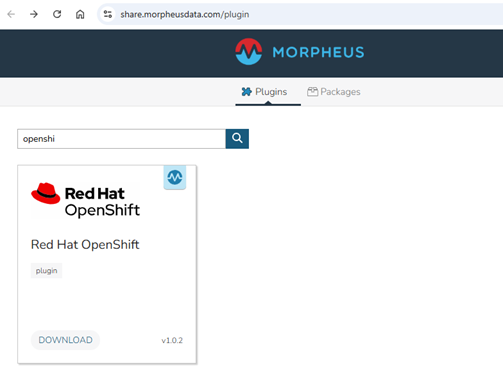
FIGURE 68. Morpheus Marketplace – Red Hat OpenShift plugin download
- Log in to Morpheus and navigate to Administration → Integrations → Plugins → Add.
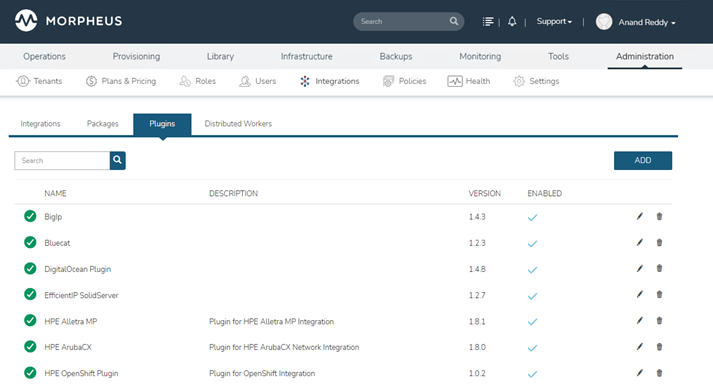 FIGURE 69. Adding the OpenShift plugin in Morpheus Administration
Upload the downloaded OpenShift plugin.
Navigate to Infrastructure → Clusters → Add Cluster.
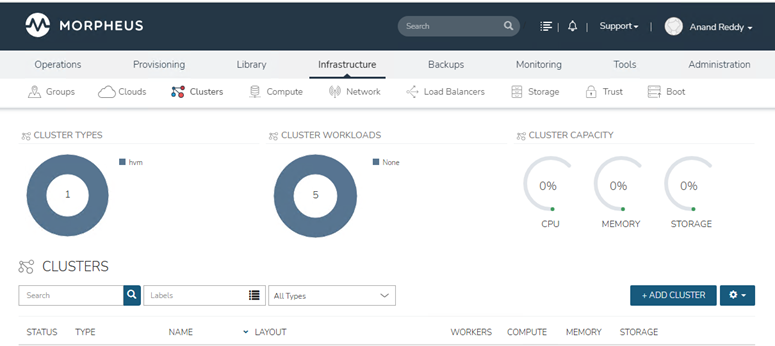 FIGURE 70. Add Cluster option in Infrastructure menu
- Select Red Hat OpenShift Cluster as the cluster type and click Next.
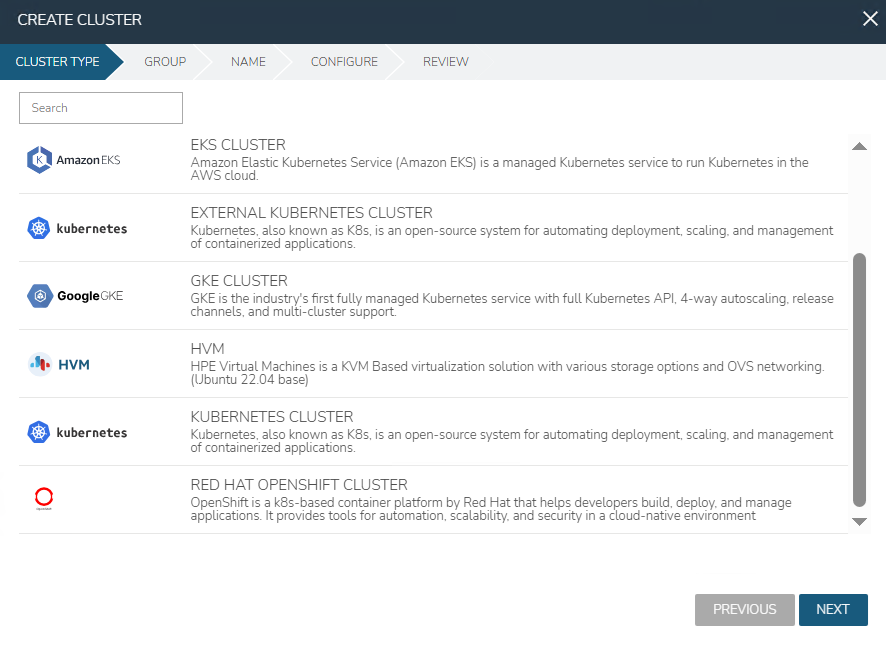 FIGURE 71. Selecting Red Hat OpenShift Cluster type
- Provide the Group, Cloud, and Cluster Name, then click Next.
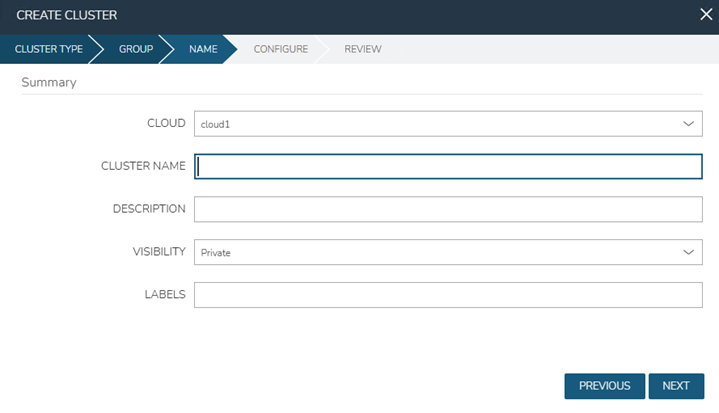 FIGURE 72. Configuring Group, Cloud, and Cluster Name
Provide the API URL and Service Token.
Select the checkbox for Inventory Existing Instances, then click Next.
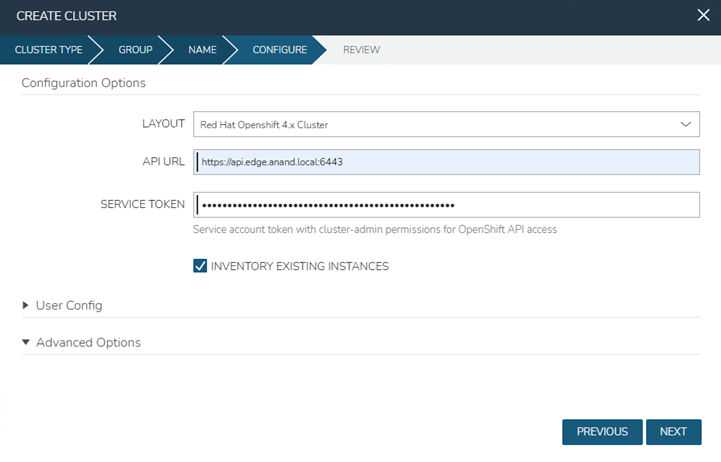 FIGURE 73. Providing API URL, Service Token, and enabling inventory of existing instances
- Review the configuration details and click Complete.
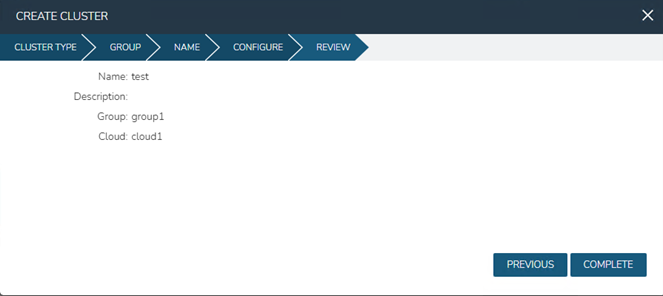 FIGURE 74. Reviewing cluster configuration before completion
- Once the cluster is imported, verify it under Infrastructure → Clusters.
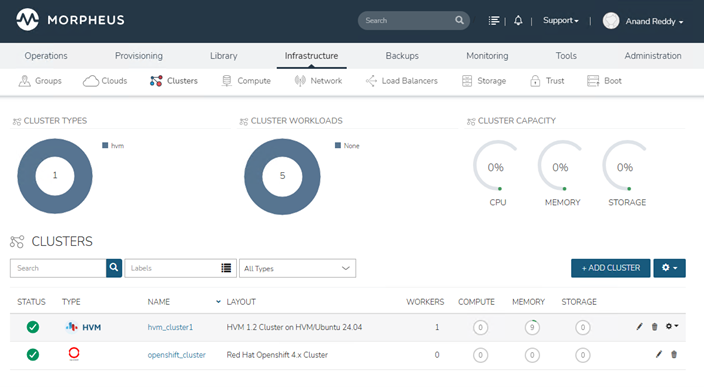 FIGURE 75. Imported OpenShift cluster in Morpheus Infrastructure view
Validation
- Verify the cluster nodes from the Morpheus UI.
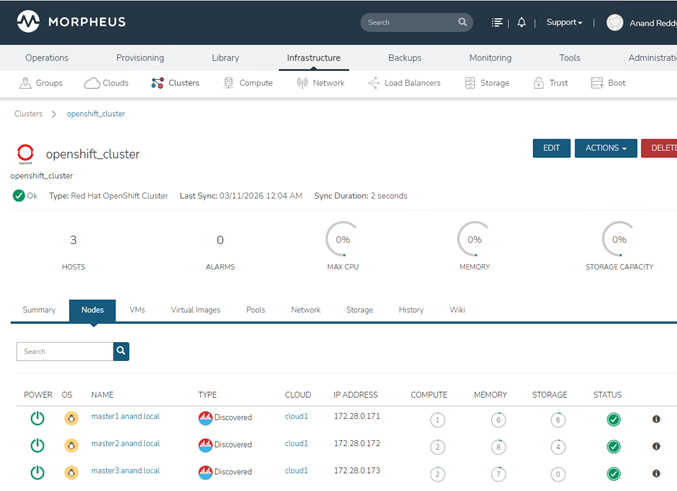 FIGURE 76. Cluster nodes listed in Morpheus UI
Check the available Virtual Images.
Navigate to Infrastructure → Compute → Virtual Machines.
Existing VMs from the OpenShift cluster will appear as unmanaged VMs.
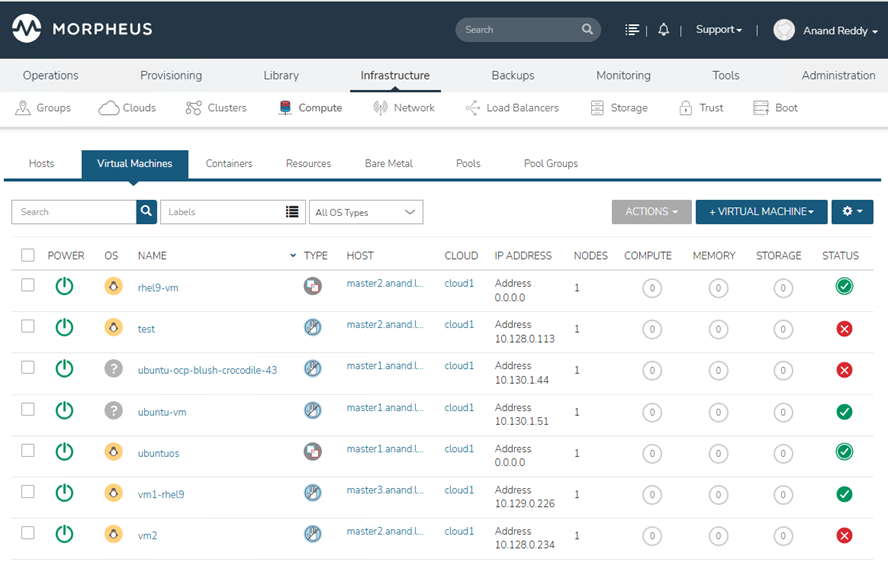 FIGURE 77. Unmanaged virtual machines from the imported OpenShift cluster
Converting Unmanaged VMs to Managed
Select a virtual machine.
Click Actions → Convert to Managed.
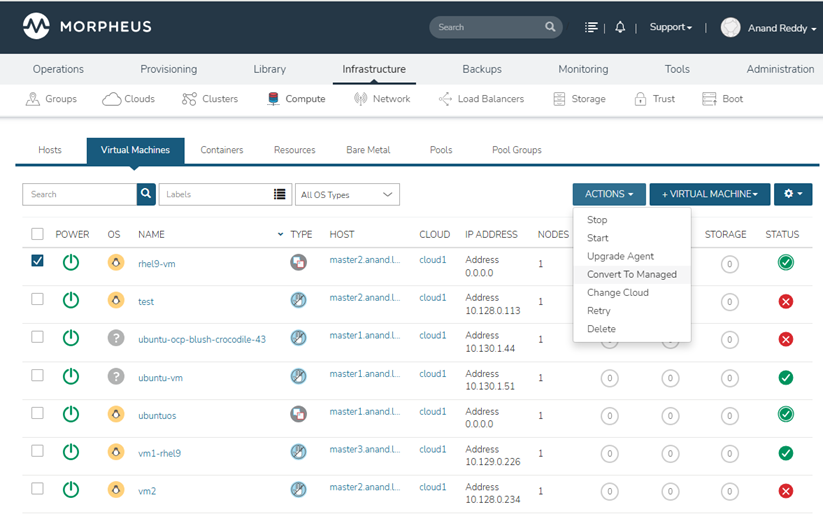 FIGURE 78. Convert to Managed option in VM Actions
Provide the username and password.
Select Agent as the install agent.
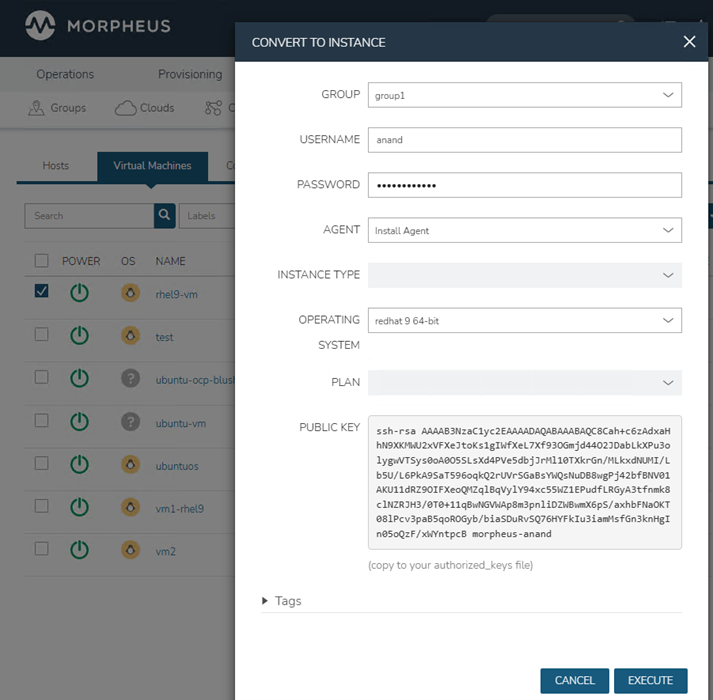 FIGURE 79. Providing credentials and selecting install agent for managed conversion
Click Execute.
Once completed, the VM will be converted into a managed instance and visible within the OpenShift cluster in Morpheus.
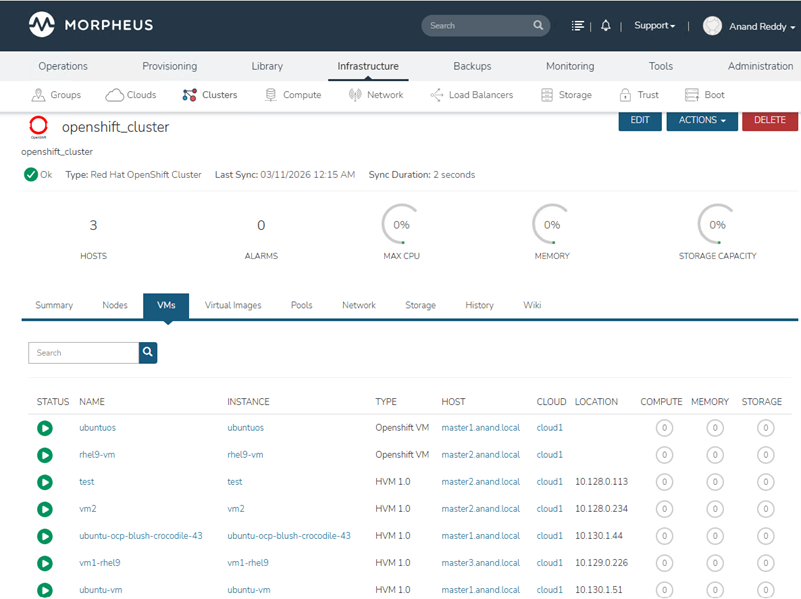 FIGURE 80. VM successfully converted to managed instance in Morpheus